Tutor safeguarding
Tutors can access the Safeguarding Tutor screen by selecting the PastoralTutor option in the left-hand panel in Ontrack Staff Hub.
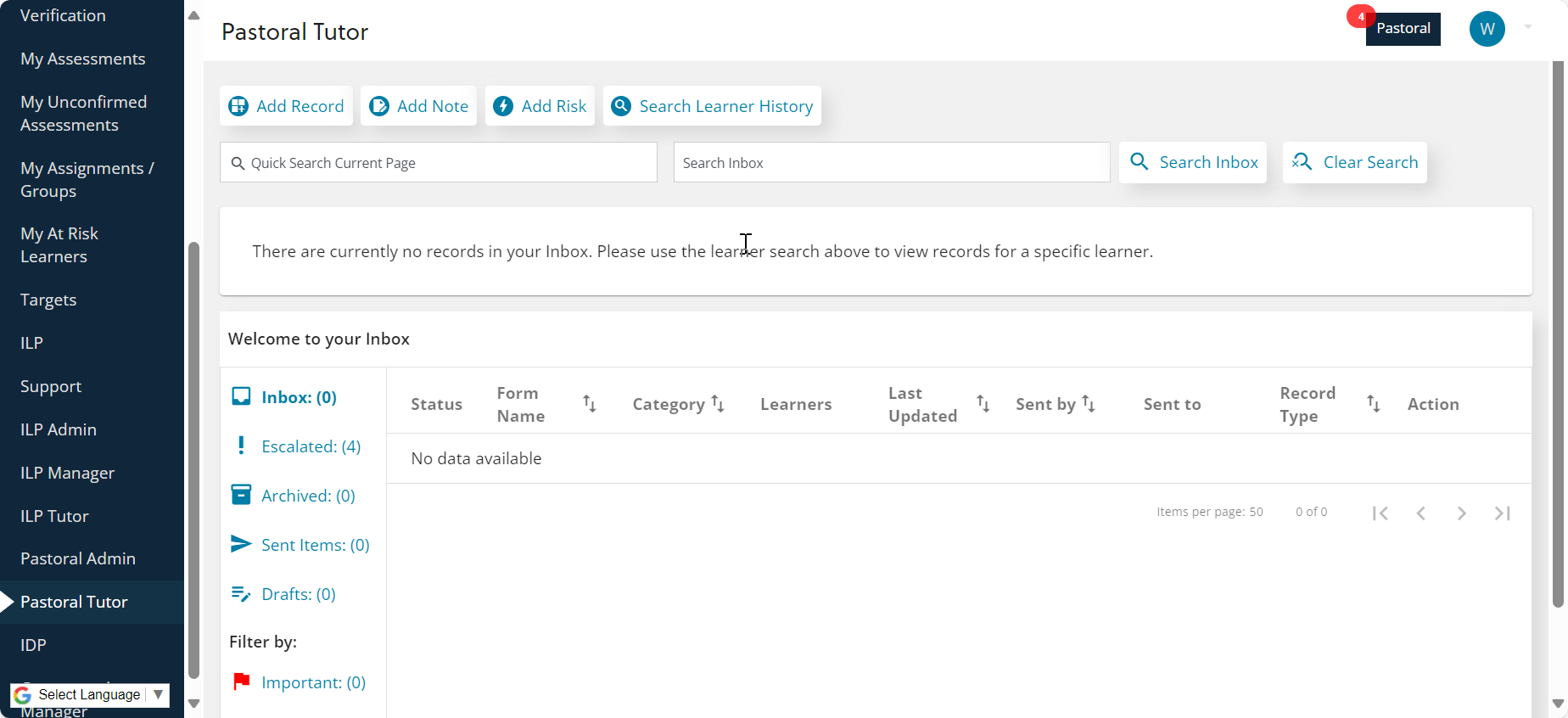
Tutors can use the Safeguarding Tutor screen to:-
-
View Safeguarding Messages that have been shared with them. Urgent reports will be flagged to ensure they are prioritised.
-
Add notes, records, and risks about safeguarding concerns using templates.
-
Search Learner History for notes and records for a specific learner. This will only display information that has been shared with you.
Tutors will also be notified on the homepage as soon as they receive any safeguarding messages. Selecting on the Pastoral button will take them to the same page as thePastoralTutor link in the left hand menu.

Tutor inbox
The Safeguarding tutor homepage is an inbox for any records and notes that have been shared with you. The inbox can show a maximum of 50 items per page. You can search the messages on the page or all messages sent to you.
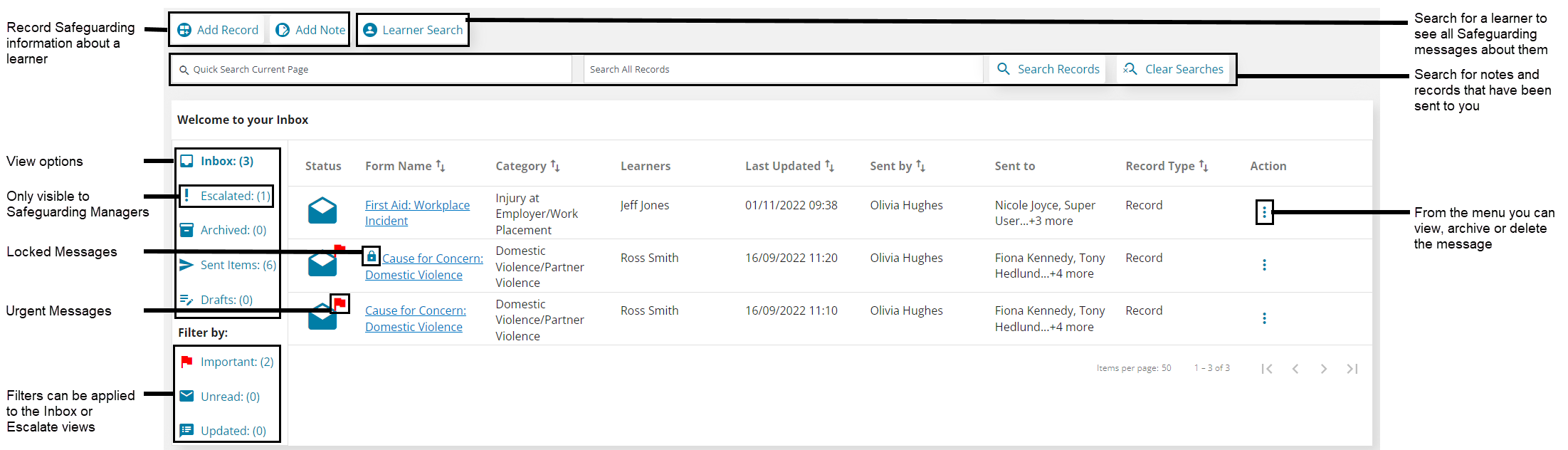
The Icons next the message indicate its status:-
A closed envelope indicates an unread message.
An open envelope indicates a read message.
A speech bubble indicates a message that has been updated since you last read it.
Red Flags indicates that messages are urgent. These messages may be delivered at any time of day depending on your institution settings. The urgent flag is usually set based on the template used. For Safeguarding managers this icon can also represent a message that has been escalated.
Locks indicate that the record has been restricted by a Safeguarding Manager. If you are not a Safeguarding Manager you will not be able to view the contents of the message.
Deleting a message
You can delete a message from your inbox by selecting the menu icon next to it and then selecting Delete from inbox . This only deletes the message from your inbox it does not delete it from the Learner's Record.
Archiving a message
You can archive a message from your inbox by selecting the menu icon next to it and then selecting Archive from inbox . This removes the message from your inbox. It can still be viewed by selecting Archived .
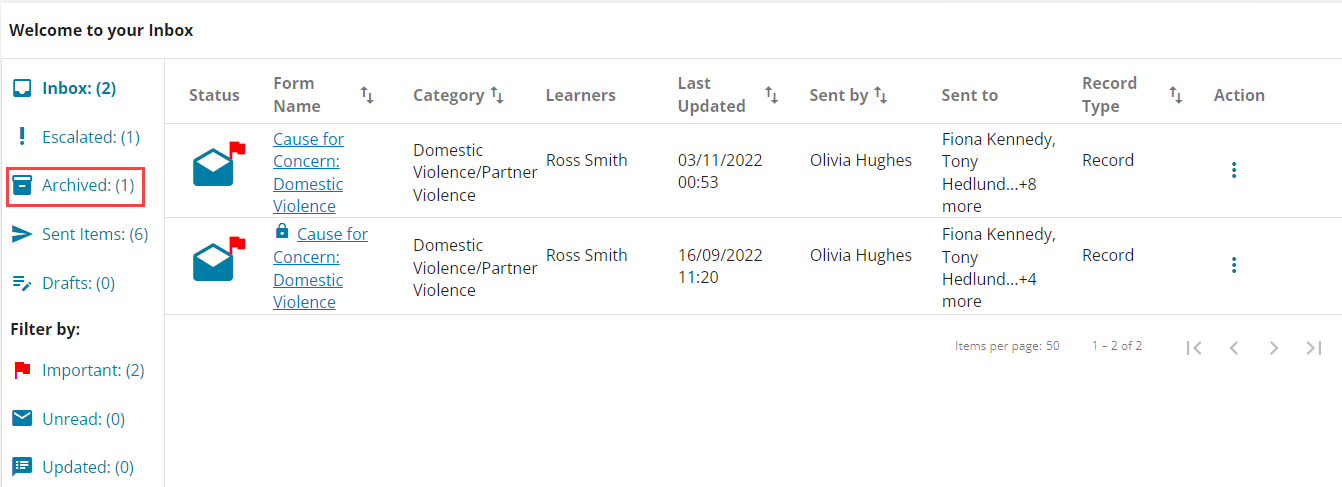
Archiving a message does not delete it from the Learner's Record.
Bulk actions
The bulk actions feature allows you to manage multiple safeguarding inbox items at the same time, helping you keep your inbox up to date more efficiently.
When bulk actions are enabled, selection check boxes appear for each inbox item, along with a Select all option. You can then apply actions such as Archive or Delete to multiple items.
Before an action is completed, you are asked to confirm your choice. This helps prevent accidental changes, particularly when deleting items, which cannot be recovered.